Modular PSU cables: compatibility, replacements and extensions
By James Thompson · Updated:
Some links in my articles are affiliate links. I may earn a commission when you buy through them.
Keep modular power leads with the PSU they belong to. The component end can look familiar while the PSU-side wiring differs. A replacement needs an exact compatibility match; an ordinary extension goes on the component end of the correct original lead.
A matching plug is not a matching cable
Modular sockets remove clutter, but they also make it easy to mix cables during an upgrade. A lead can fit mechanically without having the correct electrical pinout. Treat the PSU model, cable family and connector purpose as one identification job.
Before removing an old unit, separate every PSU-side cable from the PC. Put the old cable set in a labelled bag with its unit. Install the new set from end to end, including SATA power leads hidden behind drive trays. This prevents an old drive lead surviving unnoticed while the obvious GPU cable gets replaced.
Read the exact PSU model and revision from its label
Use the maker’s compatibility chart or a named replacement listing
Replace the full relevant lead with mains disconnected
Check both ends, routing and connector seating
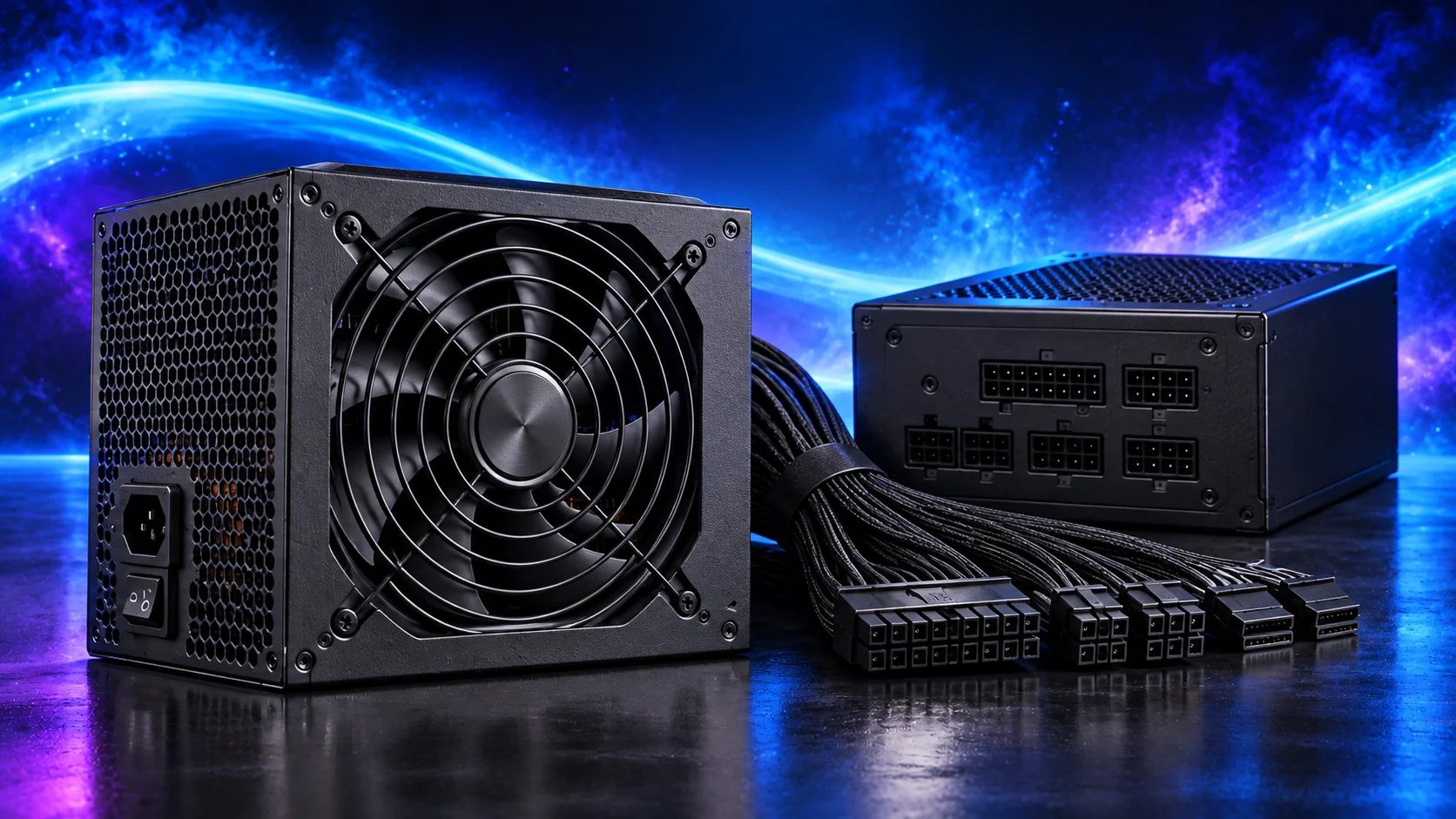
Use the exact manufacturer chart
Corsair’s Type 3, Type 4 and Type 5 labels refer to specific cable families. The current chart distinguishes the 24-pin motherboard lead from the other connector types; it does not mean every cable from every Corsair unit is interchangeable. Other brands use their own arrangements.
If the chart excludes a model, ask the manufacturer for the supported part number. A marketplace cable advertised simply as “modular8-pin” gives too little information. The label should identify both PSU compatibility and the device-side job. Keep the original PSU model in your build notes so the same check remains possible years later.
Extensions and replacement leads do different jobs
| Accessory | Connection | Decision |
|---|---|---|
| PSU-side replacement cable | Plugs directly into the modular PSU | Exact model/family compatibility is essential. |
| ATX/PCIe extension | Attaches to the component end of the original correct lead | Match connector type, electrical rating and available space. |
| GPU adapter supplied with the card | Combines specified inputs into the GPU connection | Follow that card’s instructions and input-lead requirements. |
An extension does not turn a CPU EPS lead into a graphics-card lead. Keep extra joins accessible and route them without tension. Decorative cables add bulk, so a compact case may be easier to build with the original lead. For16-pin GPU connections, favour the supported PSU/card route and preserve the required bend space.
Finish the cable map before powering on
Trace the 24-pin lead to the motherboard, EPS to CPU power, graphics power to the card and SATA power to the intended drives or controller. Check that unused modular plugs are not sitting against fan blades. A final look behind the motherboard tray matters as much as the visible front.
The next step is matching the PSU to the build, then choosing the unit and included cable set. For lighting, fans and case switches, use the motherboard header map; these are separate connections.
Specifications and setup: Corsair’s current compatibility chart.